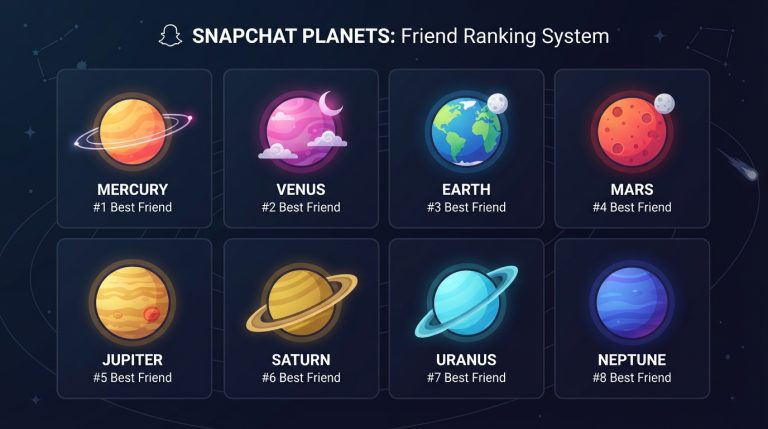
Snapchat Planets Missing After Update – Solutions
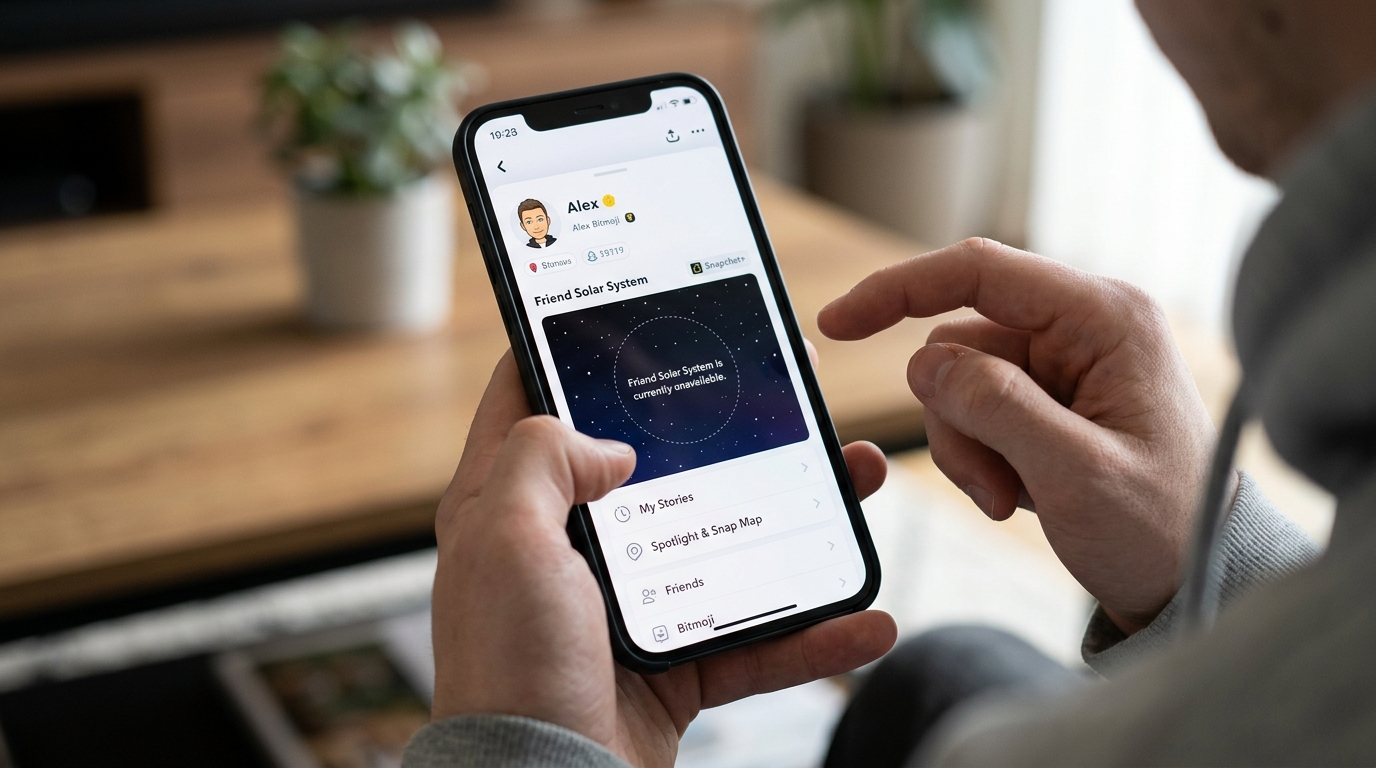
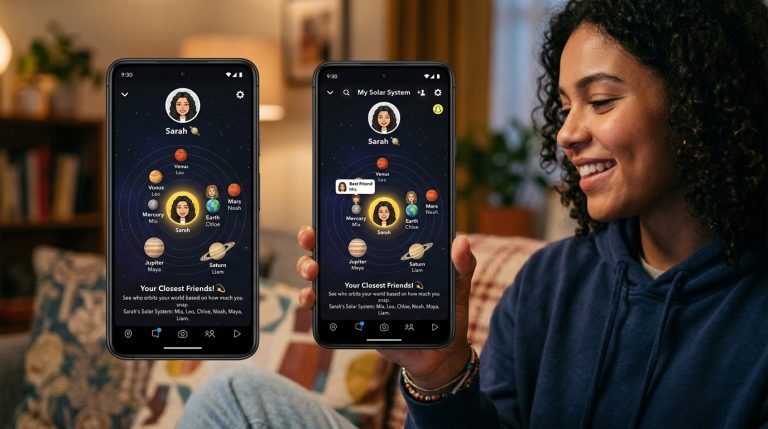
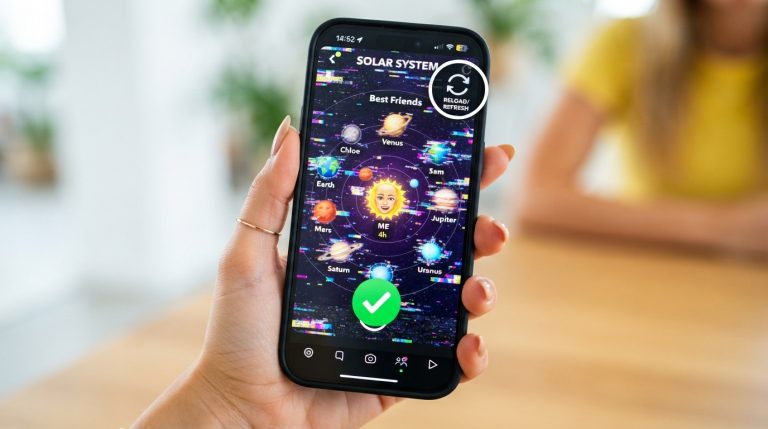
Updating Snapchat usually brings new features, security improvements, and bug fixes. However, some users notice that after installing the latest update, the Snapchat Planets feature disappears. If you’re a Snapchat Plus subscriber and can no longer access the Friend Solar System, don’t panic. In most cases, the issue is temporary and can be resolved with a few simple troubleshooting steps.
This guide explains why Snapchat Planets may disappear after an update and provides effective solutions to restore the feature.
Why Did Snapchat Planets Disappear After an Update?
There are several reasons why Snapchat Planets may be missing after updating the app.
The most common causes include:
- Temporary software bugs
- Snapchat Plus subscription issues
- Friend Solar System being disabled
- App cache conflicts
- Server-side changes
- Account synchronization problems
- Feature rollout delays
Understanding the cause will help you fix the problem faster.
Check Your Snapchat Plus Subscription
Snapchat Planets is an exclusive feature for Snapchat Plus subscribers.
To verify your subscription:
- Open Snapchat.
- Tap your profile icon.
- Select Snapchat Plus.
- Confirm that your subscription is still active.
Sometimes an update may temporarily fail to recognize your subscription, so verifying its status is the first step.
Make Sure Friend Solar System Is Enabled
After certain updates, some Snapchat Plus settings may reset.
To check:
- Open Snapchat.
- Go to your Profile.
- Tap Snapchat Plus.
- Look for Friend Solar System.
- Enable the feature if it is turned off.
Restart the app after enabling it.
Restart Snapchat
A simple restart can resolve many update-related glitches.
To restart Snapchat:
- Close the app completely.
- Remove it from your recent apps.
- Wait a few seconds.
- Reopen Snapchat.
This allows the app to reload premium features.
Restart Your Device
Sometimes your phone needs a fresh restart after installing app updates.
Restarting your device:
- Clears temporary memory.
- Reloads system services.
- Resolves minor software conflicts.
Once your phone turns back on, open Snapchat again.
Clear Snapchat Cache
Old cache files may conflict with newly installed app updates.
To clear the cache:
- Open Snapchat.
- Tap your profile.
- Open Settings.
- Scroll to Clear Cache.
- Confirm the action.
Your chats, memories, and account data will remain safe.
Verify You’re Using the Official Snapchat App
If you downloaded Snapchat from an unofficial source, premium features may not work correctly.
Always install Snapchat from:
- Google Play Store
- Apple App Store
Official versions receive the latest feature updates and security patches.
Wait for the Feature Rollout
Not every update reaches all users at the same time.
Snapchat sometimes releases new features gradually.
If your friends still have Snapchat Planets while you don’t, the update may still be rolling out to your account.
Waiting 24 to 48 hours often resolves the issue.
Check Your Internet Connection
Snapchat requires a stable connection to load premium features.
Try these steps:
- Switch between Wi-Fi and mobile data.
- Disable VPN services.
- Restart your router.
- Test your internet connection.
Poor connectivity can prevent the Friend Solar System from loading.
Log Out and Sign Back In
Account synchronization issues may occur after major updates.
To refresh your account:
- Open Snapchat Settings.
- Tap Log Out.
- Close the app.
- Open Snapchat again.
- Sign back in.
Many users find that premium features return after logging back into their account.
Reinstall Snapchat
If the update was installed incorrectly, reinstalling Snapchat may solve the problem.
Steps:
- Delete Snapchat from your device.
- Restart your phone.
- Download Snapchat again from the official app store.
- Log into your account.
- Check whether Snapchat Planets has returned.
A fresh installation removes corrupted files that may have been created during the update.
Check If Your Friend Is Still in Your Top Eight
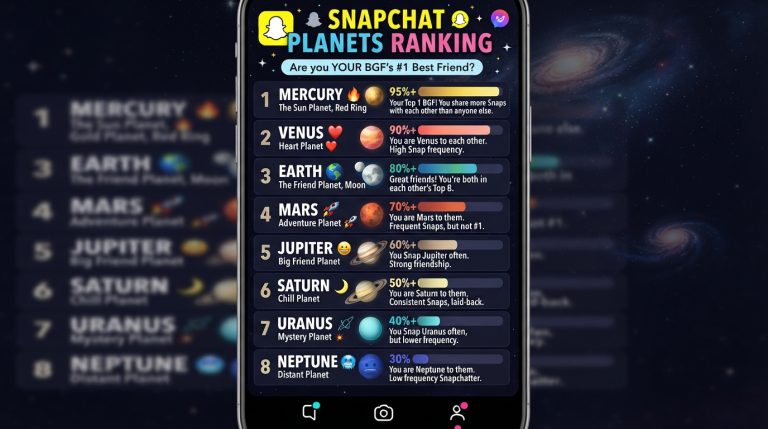
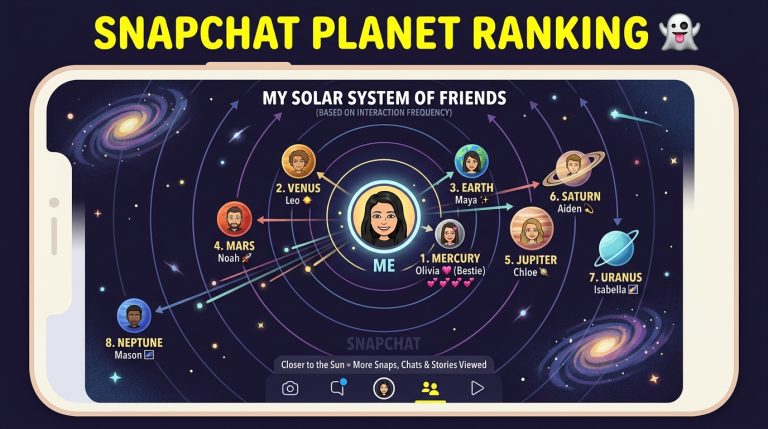
Even if Snapchat Planets is working, it will only appear for your top eight friends.
If someone’s interaction level has decreased, they may no longer appear in your Friend Solar System.
Increase your interaction by:
- Sending daily snaps.
- Maintaining Snapstreaks.
- Chatting regularly.
- Replying to stories.
Their planet may reappear after your activity increases.
Look for Snapchat Server Issues
Sometimes the problem isn’t caused by your phone.
If Snapchat’s servers are experiencing technical difficulties:
- Snapchat Planets may disappear temporarily.
- Other Snapchat Plus features may also stop working.
- The issue usually resolves once Snapchat completes maintenance.
If many users are reporting similar problems, waiting is often the best solution.
Contact Snapchat Support
If you’ve tried every solution and Snapchat Planets is still missing, contact Snapchat Support.
Provide details such as:
- Your device model.
- Operating system version.
- Snapchat version.
- Confirmation that your Snapchat Plus subscription is active.
- Screenshots of the issue if possible.
Support can investigate account-specific problems.
Frequently Asked Questions
Why did Snapchat Planets disappear after updating?
The most common reasons include:
- Temporary app bugs
- Disabled Friend Solar System
- Subscription verification issues
- Server maintenance
- App cache conflicts
Will reinstalling Snapchat restore Snapchat Planets?
Yes. Reinstalling often fixes update-related issues without affecting your account or friendship rankings.
Can a Snapchat update remove premium features?
Occasionally, updates may temporarily hide premium features because of bugs or synchronization delays. They usually return after troubleshooting or a later patch.
Does updating Snapchat reset my Planet rankings?
No. Your Planet rankings are stored on Snapchat’s servers and are linked to your account, not your device.
How long should I wait before contacting Snapchat Support?
If Snapchat Planets is still missing after trying all troubleshooting steps and waiting 48 hours, it’s a good idea to contact Snapchat Support for further assistance.
Following these solutions will resolve most cases where Snapchat Planets disappears after an update. In many situations, the issue is temporary and can be fixed by checking your subscription, clearing the cache, updating settings, or reinstalling the app.