How to Fix Snapchat Planets Not Loading
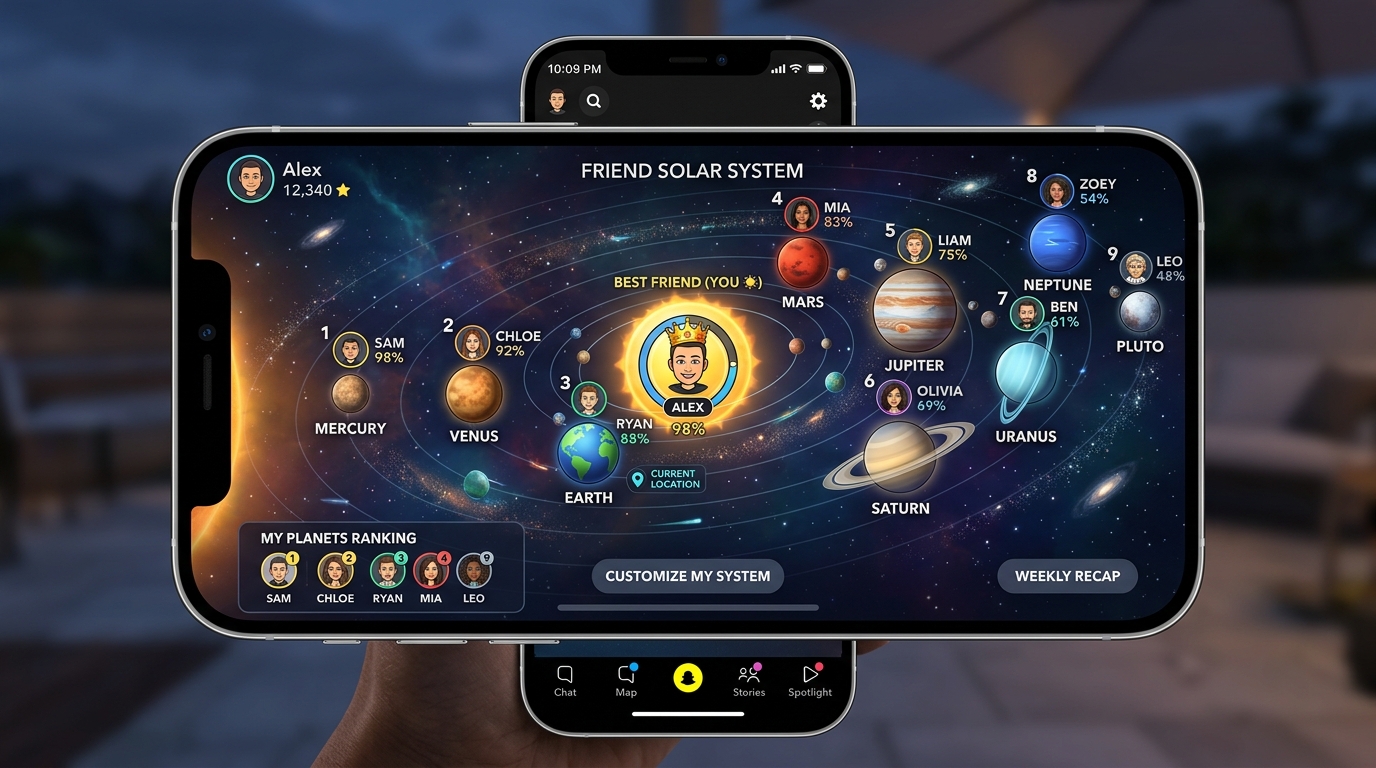
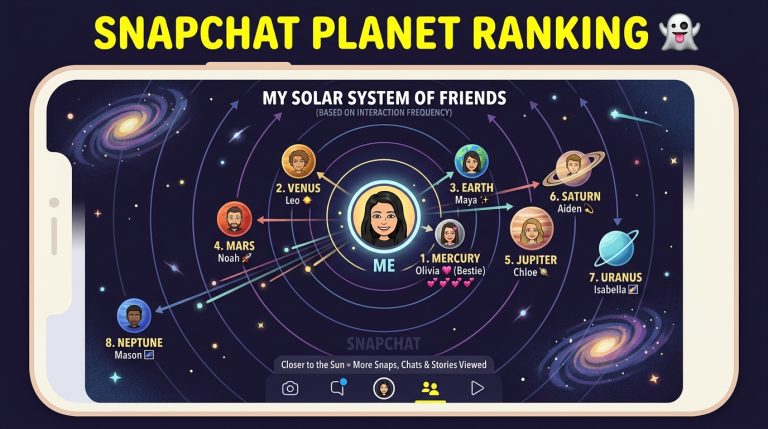
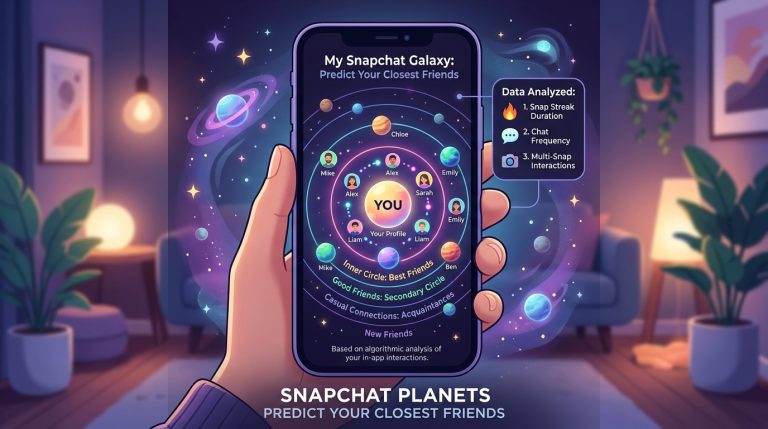
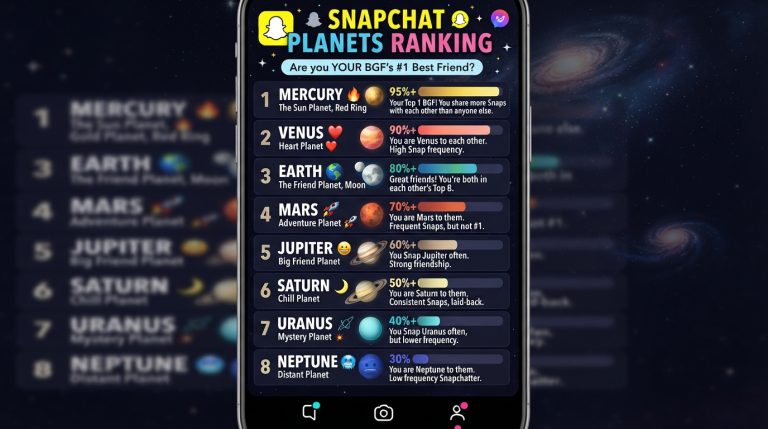
Snapchat Planets is one of the most popular features available with Snapchat Plus. It lets you view your closest friends in the Friend Solar System, where each friend is assigned a planet based on your interaction level. However, some users encounter an issue where Snapchat Planets won’t load or the Solar System never appears.
If you’re facing this problem, don’t worry. In most cases, it’s caused by a temporary app glitch, an outdated version of Snapchat, or a subscription-related issue. The good news is that you can usually fix it in just a few minutes.
This guide explains the most common reasons why Snapchat Planets is not loading and provides step-by-step solutions to get the feature working again.
Why Is Snapchat Planets Not Loading?
There are several reasons why the Friend Solar System may fail to load.
Common causes include:
- An expired Snapchat Plus subscription
- Poor internet connection
- Outdated Snapchat app
- Temporary server issues
- Corrupted app cache
- Disabled Friend Solar System feature
- Account syncing problems
Identifying the cause will help you choose the right solution.
Check Your Snapchat Plus Subscription
Snapchat Planets is only available to Snapchat Plus subscribers.
To verify your subscription:
- Open Snapchat.
- Tap your profile icon.
- Select Snapchat Plus.
- Check whether your subscription is active.
If your subscription has expired, renew it to regain access to the Friend Solar System.
Make Sure Friend Solar System Is Enabled
Some users subscribe to Snapchat Plus but never enable the Friend Solar System.
To check:
- Open Snapchat.
- Go to your Profile.
- Tap Snapchat Plus.
- Find the Friend Solar System option.
- Turn it on if it’s disabled.
After enabling it, restart the app and check again.
Update Snapchat to the Latest Version
Running an older version of Snapchat may prevent premium features from loading.
To update Snapchat:
- Open the Google Play Store or Apple App Store.
- Search for Snapchat.
- Tap Update if available.
- Launch the updated app.
New updates often include bug fixes for Snapchat Plus features.
Check Your Internet Connection
Snapchat Planets requires a stable internet connection.
Try the following:
- Switch between Wi-Fi and mobile data.
- Restart your Wi-Fi router.
- Disable any VPN connection.
- Test your internet speed.
A weak or unstable connection may prevent the Solar System from loading properly.
Restart Snapchat
Sometimes the simplest solution is the most effective.
To restart Snapchat:
- Close the app completely.
- Remove it from your recent apps.
- Wait a few seconds.
- Open Snapchat again.
This refreshes the app and resolves many temporary loading issues.
Clear Snapchat Cache
A corrupted cache can interfere with premium features.
To clear the cache:
- Open Snapchat.
- Go to Settings.
- Scroll to Clear Cache.
- Confirm the action.
- Restart Snapchat.
This removes temporary files without deleting your chats, memories, or account.
Log Out and Log Back In
Refreshing your account session can solve synchronization problems.
Steps:
- Open Snapchat Settings.
- Scroll down and tap Log Out.
- Close the app.
- Open Snapchat again.
- Sign back into your account.
After logging in, check whether Snapchat Planets loads correctly.
Check If Your Friend Is in Your Top 8
Snapchat Planets only works for your top eight friends.
If you open the profile of someone outside your top eight, the Planet feature won’t appear.
Interact more with that friend by:
- Sending snaps regularly.
- Chatting frequently.
- Maintaining Snapstreaks.
- Replying to their stories.
Their ranking may improve over time.
Restart Your Phone
If Snapchat continues to malfunction, restarting your device may help.
Restarting:
- Clears temporary memory.
- Stops background app conflicts.
- Refreshes system processes.
Once your phone restarts, open Snapchat and test the feature again.
Reinstall Snapchat
If none of the previous methods work, reinstall the app.
Follow these steps:
- Uninstall Snapchat.
- Restart your phone.
- Download Snapchat again from the official app store.
- Log into your account.
- Verify that Snapchat Plus is active.
A clean installation often fixes persistent loading problems.
Check Snapchat Server Status
Occasionally, the problem isn’t on your device.
If Snapchat’s servers are experiencing issues:
- Snapchat Planets may fail to load.
- Other Snapchat Plus features may also stop working.
- The issue usually resolves once Snapchat restores its services.
If many users are reporting the same problem, waiting for Snapchat to fix the server issue may be the only solution.
Disable Battery Optimization
Some Android devices restrict apps running in the background.
Battery optimization may prevent Snapchat from loading premium content properly.
To fix this:
- Open your phone’s Settings.
- Find Battery or App Management.
- Select Snapchat.
- Disable battery optimization for the app.
Afterward, reopen Snapchat and check the Friend Solar System.
Avoid Using an Outdated Beta Version
If you’re using a beta version of Snapchat, some features may be unstable.
Consider:
- Leaving the beta program.
- Installing the latest stable version.
- Logging back into your account.
Stable releases generally provide a more reliable experience.
Frequently Asked Questions
Why does Snapchat Planets keep loading forever?
This usually happens because of:
- Slow internet
- Temporary server issues
- App cache problems
- Outdated Snapchat version
Restarting the app and clearing the cache often resolves the issue.
Why can’t I open the Friend Solar System?
Possible reasons include:
- Snapchat Plus is inactive.
- Friend Solar System is disabled.
- The friend isn’t in your top eight.
- Snapchat is experiencing technical issues.
Does reinstalling Snapchat remove my Planet rankings?
No. Your Friend Solar System is linked to your Snapchat account, not your device. Reinstalling the app will not reset your rankings.
Can Snapchat servers cause Planets not to load?
Yes. If Snapchat is experiencing server outages or maintenance, premium features such as Snapchat Planets may temporarily stop working.
How long does it take for Snapchat Planets to start working again?
If the issue is caused by your device or app, it can often be fixed within a few minutes. If Snapchat’s servers are responsible, you may need to wait until the service is restored.
By following these troubleshooting steps, most users can quickly resolve Snapchat Planets loading issues and continue enjoying the Friend Solar System without interruption.