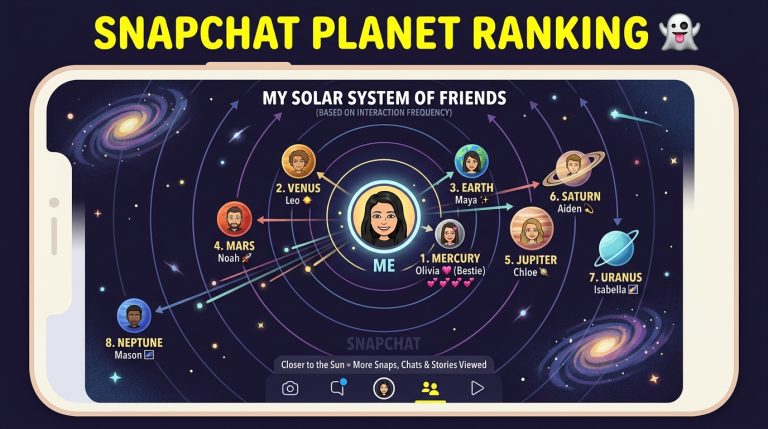
Snapchat Glitch in the System: Causes, Fixes, and Prevention Tips
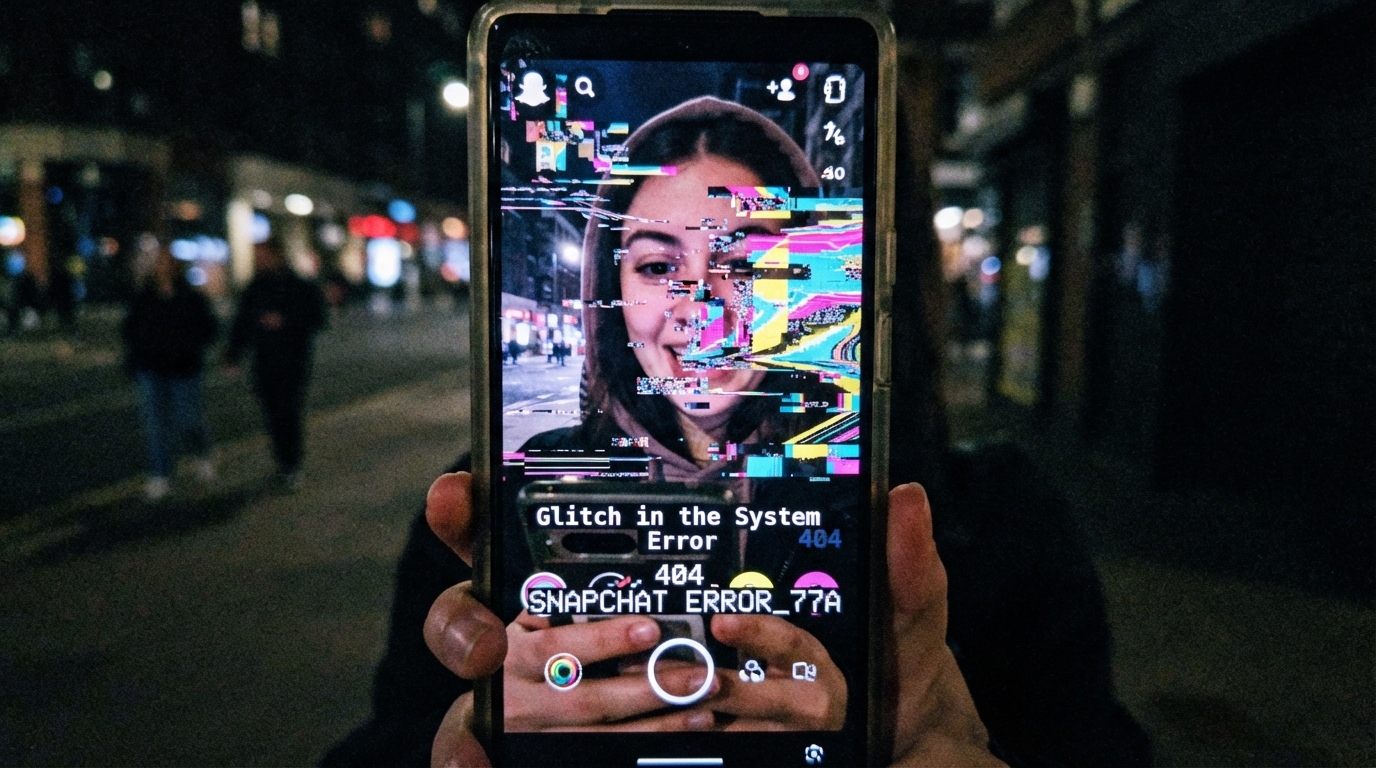
Snapchat is one of the most reliable social media apps, but like any software, it can occasionally experience technical issues. Many users report unexpected problems such as Snapchat Planets disappearing, Stories failing to load, messages not sending, or the app crashing unexpectedly. These issues are often referred to as a “glitch in the system.”
A system glitch can occur after an app update, because of temporary server problems, or due to software conflicts on your device. The good news is that most Snapchat glitches are temporary and can be fixed with a few simple troubleshooting steps.
In this guide, we’ll explain what causes Snapchat system glitches, the most common issues users experience, and how to fix them.
What Is a Snapchat System Glitch?
A system glitch is a temporary software problem that prevents Snapchat from working as expected.
Unlike account suspensions or permanent bugs, glitches are usually short-lived and disappear after the app refreshes or receives an update.
A glitch may affect:
- Snapchat Planets
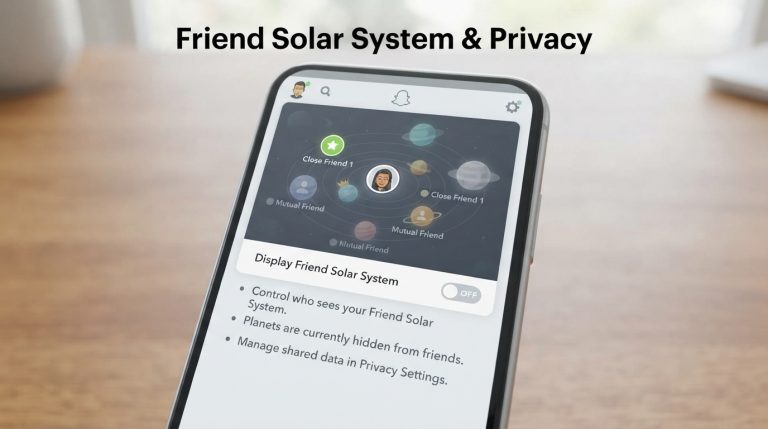
- Friend Solar System
- Stories
- Chats
- Snaps
- Notifications
- Filters and Lenses
- Snap Map
Most glitches do not permanently affect your account or saved data.
Common Signs of a Snapchat Glitch
You may be experiencing a system glitch if you notice any of the following:
- Snapchat Planets are missing.
- Stories won’t load.
- Messages fail to send.
- Snaps remain pending.
- The app crashes repeatedly.
- The camera displays a black screen.
- Filters stop working.
- Friend rankings appear incorrect.
- Notifications don’t arrive.
- Snapchat freezes while opening.
These issues often appear suddenly and may disappear just as quickly.
Why Do Snapchat Glitches Happen?
Several factors can trigger temporary issues within Snapchat.
Common causes include:
- App updates
- Server maintenance
- Corrupted cache files
- Poor internet connection
- Outdated operating system
- Device storage problems
- Temporary software bugs
Understanding the cause helps you choose the right solution.
Restart Snapchat
The first solution is also the simplest.
To restart the app:
- Close Snapchat completely.
- Remove it from your recent apps.
- Wait a few seconds.
- Open Snapchat again.
Many temporary glitches disappear after restarting the app.
Restart Your Phone
Some problems are caused by your device rather than Snapchat itself.
Restarting your phone:
- Refreshes system memory.
- Stops background conflicts.
- Reloads network services.
Once your device restarts, open Snapchat and check whether the issue has been resolved.
Check Your Internet Connection
Snapchat depends on a stable internet connection.
Try these steps:
- Switch between Wi-Fi and mobile data.
- Restart your router.
- Disable your VPN if you’re using one.
- Test your connection with another app.
A weak connection can cause loading errors that resemble software glitches.
Update Snapchat
Older versions of Snapchat may contain bugs that have already been fixed.
To update the app:
- Open the Google Play Store or Apple App Store.
- Search for Snapchat.
- Tap Update if available.
Running the latest version improves stability and performance.
Clear Snapchat Cache
Corrupted cache files can cause unexpected behavior.
To clear the cache:
- Open Snapchat.
- Tap your profile icon.
- Open Settings.
- Select Clear Cache.
- Confirm the action.
This removes temporary files without deleting your chats, Memories, or account information.
Check Snapchat Servers
Sometimes the problem isn’t on your device.
If Snapchat’s servers are undergoing maintenance or experiencing technical issues, you may notice:
- Login problems
- Stories not loading
- Missing Snapchat Planets
- Delayed messages
- Failed uploads
In these situations, the best solution is to wait until Snapchat resolves the issue.
Log Out and Log Back In
Refreshing your account session can fix synchronization problems.
To do this:
- Open Snapchat Settings.
- Tap Log Out.
- Close the app.
- Sign in again.
This forces Snapchat to reload your account data.
Reinstall Snapchat
If the glitch continues, reinstalling the app may help.
Steps:
- Delete Snapchat from your phone.
- Restart your device.
- Download Snapchat from the official app store.
- Log in to your account.
A clean installation removes corrupted app files that may be causing the problem.
Check Device Storage
Low storage space can affect Snapchat’s performance.
Free up storage by:
- Deleting unused apps.
- Removing duplicate photos.
- Clearing temporary files.
- Moving media to cloud storage.
Having enough free space helps Snapchat run smoothly.
Keep Your Operating System Updated
Sometimes the issue is related to your phone’s operating system rather than Snapchat itself.
Install the latest updates for:
- Android
- iOS
System updates often include bug fixes and compatibility improvements.
Avoid Unofficial Snapchat Apps
Modified versions of Snapchat can cause serious problems.
They may lead to:
- Missing features
- Frequent crashes
- Login issues
- Account security risks
Always download Snapchat from the official app stores.
When Should You Contact Snapchat Support?
If you’ve tried every troubleshooting step and the glitch still exists, contact Snapchat Support.
Be prepared to provide:
- Your device model
- Operating system version
- Snapchat version
- A description of the problem
- Screenshots if possible
This information helps the support team investigate your issue more efficiently.
Tips to Prevent Future Snapchat Glitches
Although not every glitch can be avoided, these habits can reduce the chances of running into problems:
- Keep Snapchat updated.
- Update your phone regularly.
- Maintain a stable internet connection.
- Clear the app cache occasionally.
- Restart your device from time to time.
- Use only the official Snapchat app.
- Keep sufficient free storage available.
Frequently Asked Questions
Why is Snapchat suddenly glitching?
The most common causes include temporary software bugs, server issues, outdated app versions, corrupted cache files, or internet connection problems.
Can a Snapchat update cause glitches?
Yes. Occasionally, new updates introduce temporary bugs or compatibility issues. These are usually resolved with a later update or a quick troubleshooting step.
Will clearing the cache delete my chats?
No. Clearing the Snapchat cache only removes temporary files and does not delete your saved chats, Memories, or account information.
Why are my Snapchat Planets missing?
Snapchat Planets may disappear because of a temporary glitch, a Snapchat Plus subscription issue, disabled Friend Solar System settings, or ongoing server maintenance.
Is reinstalling Snapchat safe?
Yes. Reinstalling the official Snapchat app is safe and often resolves persistent software issues. Simply sign back into your account after installation to restore your data.
Understanding the difference between a temporary system glitch and a more serious account problem can save you time and frustration. In most cases, restarting the app, updating Snapchat, clearing the cache, or waiting for server issues to be resolved is enough to get everything working normally again.