Why Can’t I See Snapchat Planets?
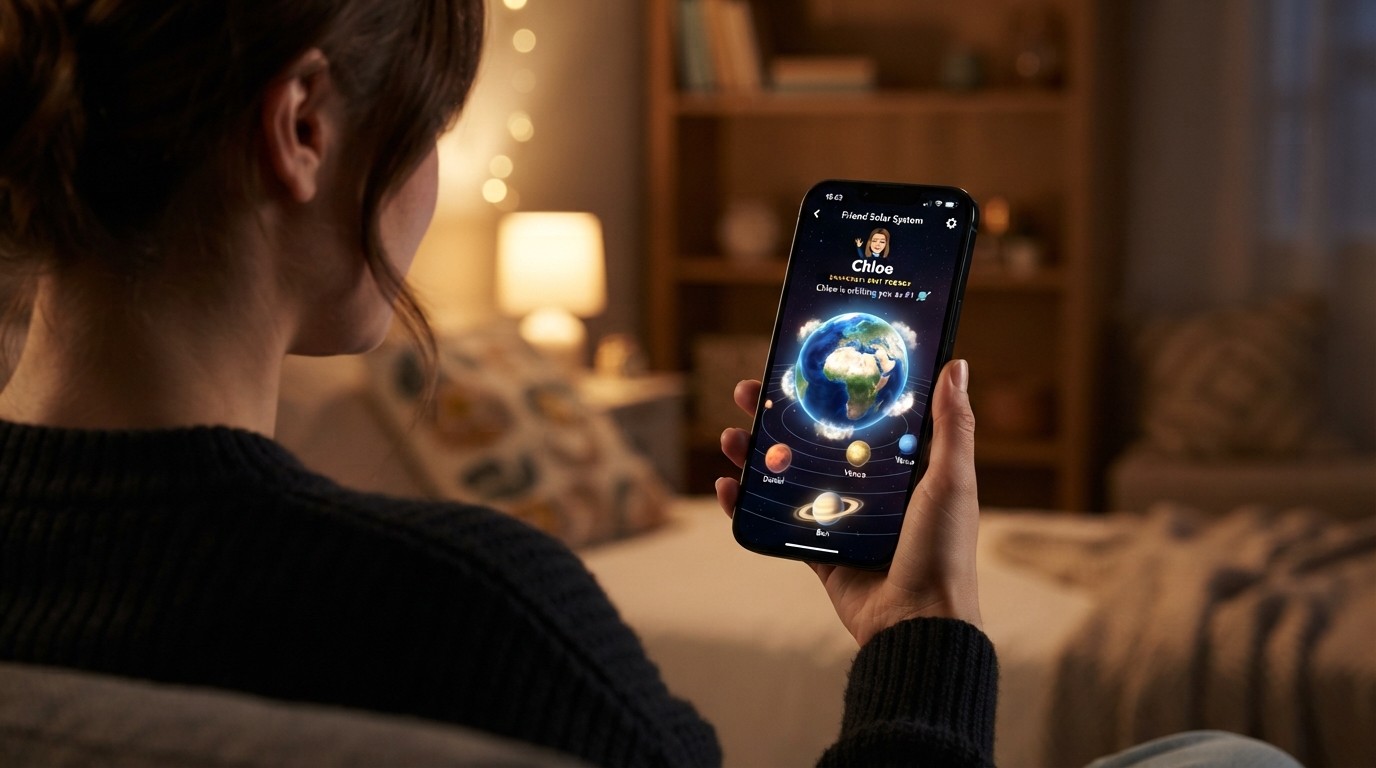
Snapchat Planets is one of the most popular features available with Snapchat Plus. It allows users to view their closest friends in a virtual Friend Solar System, where each friend is represented by a planet based on interaction level. However, many users open Snapchat expecting to see the feature only to discover that Snapchat Planets is missing.
If you’re wondering, “Why can’t I see Snapchat Planets?”, you’re not alone. This issue can happen for several reasons, ranging from subscription problems to app settings and temporary bugs.
In this guide, we’ll explain the most common causes and show you how to fix them.
What Is Snapchat Planets?
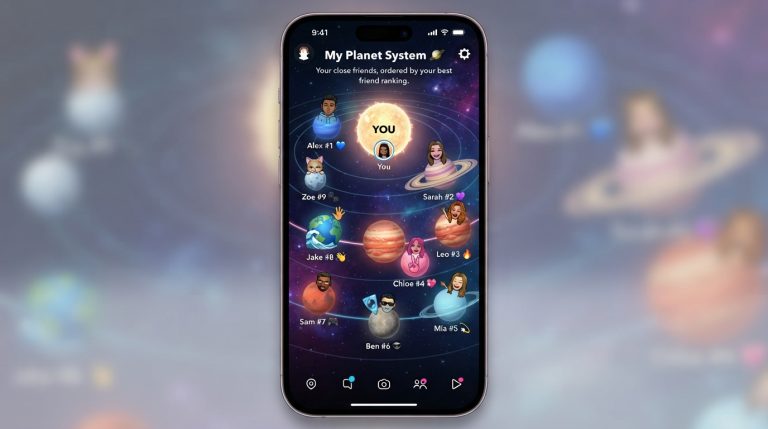
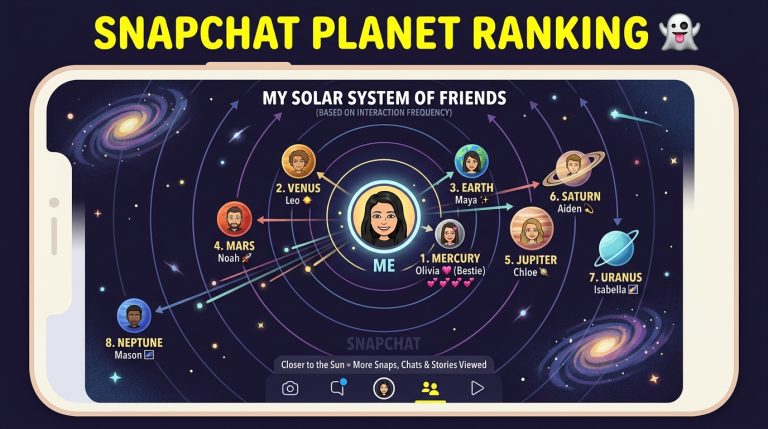
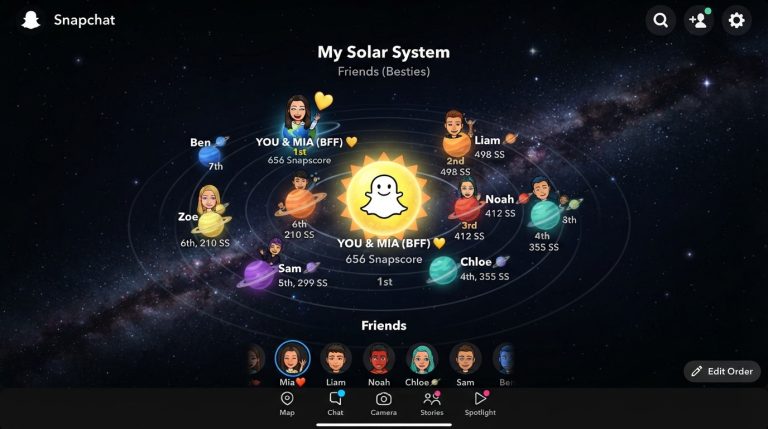
Snapchat Planets is part of the Friend Solar System feature included with Snapchat Plus.
In this feature:
- You are represented as the Sun.
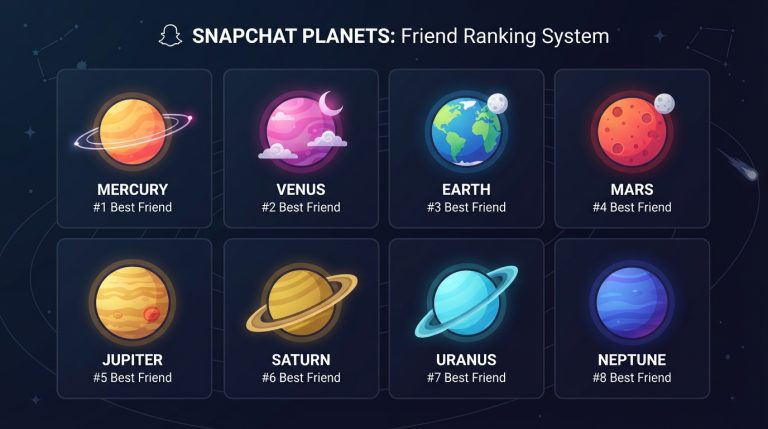
- Your top eight friends are assigned planets.
- Mercury is your closest friend.
- Neptune is your eighth closest friend.
The rankings are determined by how frequently you interact with your friends through snaps, chats, stories, and other activities.
You Need a Snapchat Plus Subscription
The most common reason you can’t see Snapchat Planets is that you’re not subscribed to Snapchat Plus.
Snapchat Planets is not available in the free version of Snapchat.
To check your subscription:
- Open Snapchat.
- Tap your profile icon.
- Select Snapchat Plus.
- Verify that your subscription is active.
If your subscription has expired, you’ll need to renew it to regain access to the feature.
Friend Solar System May Be Disabled
Even with Snapchat Plus, the Friend Solar System feature may be turned off.
To enable it:
- Open Snapchat.
- Go to your Profile.
- Tap Snapchat Plus.
- Find Friend Solar System.
- Turn the feature on if it’s disabled.
After enabling it, restart the app.
Your Snapchat App Is Outdated
An outdated version of Snapchat can prevent new features from appearing.
To update Snapchat:
- Open the Google Play Store or Apple App Store.
- Search for Snapchat.
- Tap Update if one is available.
- Restart the app after updating.
Keeping Snapchat updated ensures you have access to the latest Snapchat Plus features.
The Friend Isn’t in Your Top Eight
Snapchat Planets only displays your top eight friends.
If you’re viewing the profile of someone you don’t interact with frequently, you won’t see a planet for them.
To improve their ranking:
- Send snaps regularly.
- Chat more often.
- Maintain Snapstreaks.
- Reply to their Stories.
As your interaction increases, they may move into your Friend Solar System.
You’re Looking in the Wrong Place
Some users expect to see Snapchat Planets on the Chat screen or Profile page.
Instead, you need to:
- Open a friend’s profile.
- Look for the Best Friends or Friends badge.
- Tap the badge.
If the feature is available, the Friend Solar System will open.
Temporary Snapchat Bug
Like any app, Snapchat occasionally experiences bugs.
A temporary glitch may prevent Snapchat Planets from appearing even when everything is set up correctly.
Try these quick fixes:
- Close and reopen Snapchat.
- Restart your phone.
- Log out and sign back in.
- Clear the Snapchat cache.
These steps resolve many temporary issues.
Clear Snapchat Cache
Corrupted cache files can interfere with premium features.
To clear your cache:
- Open Snapchat.
- Tap your profile.
- Open Settings.
- Scroll down to Clear Cache.
- Confirm the action.
This won’t delete your chats, Memories, or account data.
Check Your Internet Connection
Snapchat requires a stable internet connection to load the Friend Solar System.
If your connection is unstable:
- Switch between Wi-Fi and mobile data.
- Restart your router.
- Disable any VPN.
- Test your internet speed.
A stronger connection may solve the issue immediately.
Snapchat Servers May Be Down
Sometimes the problem isn’t on your device.
If Snapchat is experiencing server maintenance or technical issues:
- Snapchat Planets may not load.
- Other Snapchat Plus features may also be unavailable.
- The feature will return once Snapchat resolves the issue.
If many users are reporting similar problems, waiting is often the best option.
Reinstall Snapchat
If none of the previous solutions work, reinstalling Snapchat can help.
Follow these steps:
- Delete Snapchat from your device.
- Restart your phone.
- Download Snapchat again from the official app store.
- Sign in to your account.
- Verify your Snapchat Plus subscription.
A clean installation removes corrupted files that may be causing the problem.
Make Sure You’re Using the Official App
Modified or unofficial versions of Snapchat may not support Snapchat Plus features.
Always download Snapchat from:
- Google Play Store
- Apple App Store
Using the official app ensures compatibility with premium features like Snapchat Planets.
Contact Snapchat Support
If you’ve tried every solution and still can’t see Snapchat Planets, contact Snapchat Support.
When reaching out, include:
- Your device model.
- Operating system version.
- Snapchat version.
- Confirmation that Snapchat Plus is active.
- Screenshots of the issue if possible.
Support can investigate account-specific problems that aren’t visible on your device.
Frequently Asked Questions
Why can’t I see Snapchat Planets even though I have Snapchat Plus?
Possible reasons include:
- Friend Solar System is disabled.
- Your app needs updating.
- Temporary app bugs.
- Your friend isn’t in your top eight.
- Snapchat servers are experiencing issues.
Can free Snapchat users access Planets?
No. Snapchat Planets is exclusively available to Snapchat Plus subscribers.
Why don’t I see the Best Friends badge?
The badge may not appear if:
- The feature is disabled.
- The friend isn’t in your top eight.
- Snapchat hasn’t finished syncing your account.
Will reinstalling Snapchat delete my Planet rankings?
No. Your Friend Solar System is linked to your Snapchat account, not your device. Reinstalling the app won’t reset your rankings.
How long does it take for Snapchat Planets to appear?
If you’ve just subscribed to Snapchat Plus, the feature may take some time to activate. In most cases, it becomes available shortly after your subscription is verified, although temporary server delays can occasionally extend this process.
By checking your subscription, enabling the Friend Solar System, updating Snapchat, and following the troubleshooting steps above, you can resolve most issues preventing Snapchat Planets from appearing. In many cases, the fix takes only a few minutes, allowing you to continue exploring your Friend Solar System without interruption.